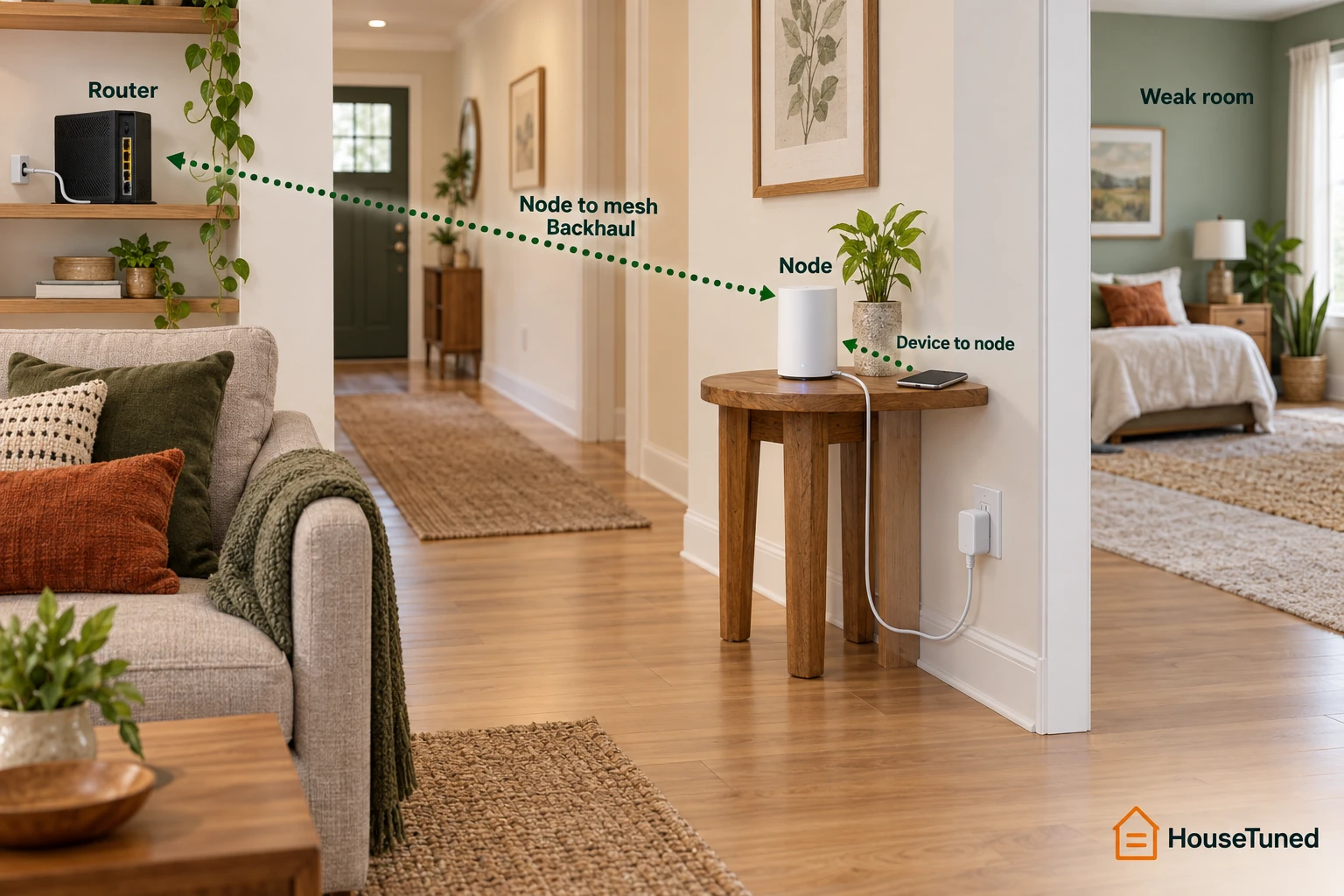
Put the next node between the router and the weak room
- Start at the main router and put the next wireless node roughly halfway toward the weak room, where it still connects well to the mesh.
- Start with one or two rooms between wireless nodes. About two rooms is the upper starting limit; the app’s mesh rating decides the final spot.
- Move a weakly connected node closer to a working node. Move a well-connected node toward the weak room if its coverage falls short.
- If no safe, useful wireless spot has a good mesh link, test existing Ethernet before adding a node.
A wireless node receives a connection from the router or another node, then serves devices nearby. Put it inside a complete dead zone and it has little to relay, even if your phone shows strong bars beside it. We’d start partway toward the problem room, because that gives both links a chance to work.
Find a clear path through rooms and floors
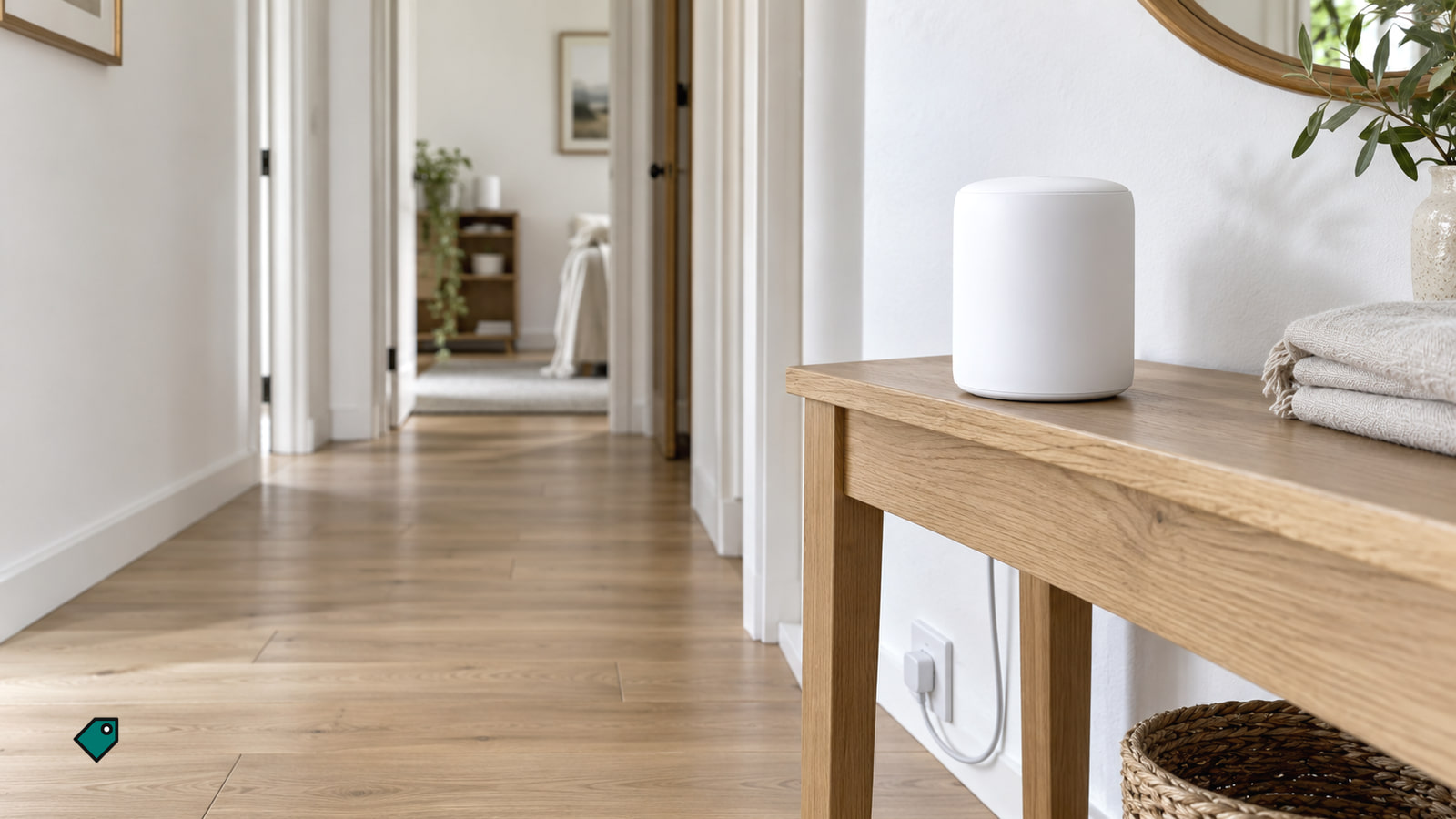
Start with the node nearest the main router and extend from a working node toward the room that needs coverage. For a long, single-floor home, an open hallway gives you a candidate spot between the router and the far room. For an upstairs room or basement, try an open spot near the stairs, then compare it with an outlet farther onto the weak floor. Choose between those spots using the mesh rating and the result in the weak room.
Brick, stone, concrete, metal and floors can weaken a wireless link. Refrigerators, microwaves, large metal objects, TVs and aquariums can also make a nearby position poor.
- Identify the room that fails and the nearest node that already works. Choose an outlet roughly partway between that node and the room, starting within one or two rooms of the working node. Before moving anything, note the node’s mesh rating and upstream source, then repeat the failing task in the weak room and a nearby working room on the same device.
- Compare two candidate outlets before moving anything: one along the clearer hallway or stair route, and one nearer the room. Favor a stable shelf or table above the floor, out in the open and outside a cabinet. The better candidate leaves fewer dense barriers between nodes.
- Move one node to the first safe position and power it there. Wait until its app status or light shows it online before judging the position; an offline node cannot serve the room.
- Read that node’s mesh connection rating. If it is weak or fair, try the clearer or closer outlet. If the link is good but Wi-Fi still falls short of the target room, try the next safe outlet toward that room and measure both results again.
Each added wireless node needs a good link to a working node. Google’s mesh placement guidance (opens in a new tab) starts its points halfway toward the weak room; use your node’s mesh rating to settle the position.
Test the weak room and the node’s own link
Phone bars reflect the device-to-node link. A router internet test measures service reaching the main router, while a mesh-link test measures the link between nodes.
| What you see | What it points to | What to do first |
|---|---|---|
| Several devices struggle in one room | Coverage or a weak link serving that room | Record the serving node’s mesh rating, then test a clearer or closer position. |
| One device struggles beside another that works | That device’s connection or choice of node | Find its serving node, reconnect its Wi-Fi and repeat the task. |
| Several rooms slow or disconnect together | The main router or incoming service | Read the router’s internet status before changing node positions. |
| A moved node goes offline | Power, its new position or its upstream link | Return it to its last working spot and watch for reconnection. |
Look in the app for a mesh test, satellite signal, node connection strength or an upstream source. Those describe the node-to-node link. A device coverage scan describes the device-to-node link instead. Signal-bar scales differ between systems, so use your app’s good, fair or poor rating rather than treating a particular number of bars as a rule for every mesh.
- Before another move, use the mesh rating and room-task results you recorded earlier. Note any change in the node’s upstream source so you can compare the next position.
- Move only the node with the weak link, or move a well-connected node toward the room when its coverage falls short. Wait for the app to show that it has reconnected, then rerun the mesh test. A stronger link means the new spot improved the node’s connection.
- Repeat the original task on the same device in the weak room, then test the previously working room. Keep the position when the weak room improves and the working room stays usable. If the mesh link weakens or either room gets worse, return the node to its earlier spot and try the other outlet.
If only one device still fails while another works beside it, look at which node serves the failing device. Turn that device’s Wi-Fi off, wait about 30 seconds, turn it on and repeat the task. Restart the device if it still fails. A device can remain connected to a farther node after you move closer to another one; if its neighbor works, keep the nodes where they are and troubleshoot that device.
If several rooms slow together, read the app’s internet or WAN status and run its router test if offered. Look at the modem or fiber terminal and provider outage information. Follow the provider’s restart steps if service is down. When the router reconnects, the rooms should recover together; if only one room remains weak, repeat its room and mesh-link tests.
Get a moved node back online
- Confirm the power plug is seated and look at the affected node’s app status or light. If it is offline, return it to its last working outlet or move it nearer an online node. Wait for the normal online indication, then run the mesh test. Reconnection in the old spot points back to the new position.
- If it remains offline or drops again in a known working spot, use the app’s Restart or Reboot command. You can also unplug that node, wait about 30 seconds and reconnect it. Wait until it shows online, then rerun its mesh test. A restart keeps the setup; a factory reset erases it.
- If it still drops, try a different outlet that powers another device. Where you have a second compatible node, exchange the two nodes’ positions, let both reconnect and compare their mesh ratings and the same room task. Trouble that stays at the original outlet or location points there; trouble that follows one node despite a strong link points to that node or its power supply.
Return the working node to its original position after the comparison. If the affected node remains unreliable in a known-good spot, record the app status, link ratings, outlets tried and swap results. If its app provides a factory-reset command and the maker directs you to use it, reset only the affected node, add it back through the app and rerun the mesh test. A successful reset ends with the node online and a good link; a node that still fails has reached the owner-testing limit.
Restarting preserves the node’s setup. A factory reset clears it and requires setup again. Avoid resetting the main router during a test of one moved node, because that interrupts the whole network.
Use Ethernet or add one node after the placement tests
When every useful wireless position has a poor mesh link, an Ethernet-capable node can use an existing cable route and sit nearer the weak room. Look for an Ethernet port on that node and confirm that its product family supports wired backhaul. Some points have no Ethernet port, and generations that cannot join the same mesh cannot serve as add-ons.
- Connect an Ethernet-capable node through the existing route. In router mode, connect it to the mesh router’s LAN side, either directly or through a supported downstream switch. Keep a loose cable out of walkways. The node should come online near the weak room.
- Open that node’s details in the mesh app and look for Wired, Ethernet or its connection source. Then repeat the failing task in the weak room and test a room that worked before. A working wired link appears as wired in the app; a plugged-in cable or good room speed alone does not establish the backhaul type.
- If the app still reports wireless, try a known-working cable and port. You can connect a laptop to the suspect cable to test that route. A failed cable, port or unsupported switch can leave the node using Wi-Fi. TP-Link’s Ethernet-backhaul wiring guidance (opens in a new tab) shows the downstream LAN route for its router-mode systems.
If the existing nodes have good mesh links but the room remains uncovered after trying useful positions, add one compatible wireless node at an intermediate spot. Confirm that the add-on belongs to your system’s product family and fits its node-count limit. Set it up through the app, confirm that it comes online with a good mesh connection, then repeat the room task and test a room that already worked. If its link is weak, move the new node closer to a working one before judging the purchase.
When the node still fails in a known-good position after the restart and comparison, contact its maker for diagnosis and warranty service before replacing it. Have the router and node models, purchase date, proof of purchase, room symptoms, connection ratings and swap results ready. If an outlet fails with a known-working device, use an electrician; if the useful wired route needs new in-wall cable, give a network cabling installer the desired endpoints, available access and whether the mesh runs in router or access-point mode.
One accessible, professionally installed Ethernet drop to an existing mesh node costs $100 to $250, including cable, termination and labor. A difficult existing-home retrofit with multiple rooms or floors runs $3,000 to $8,000 for the project, not for one drop. Finished walls, floor crossings, longer routes and wall repair increase the work. If existing Ethernet gives the node a wired link, there is no new cable run to buy.
Mesh placement questions
How far apart should mesh Wi-Fi nodes be?
Start one or two rooms apart, then let the node’s mesh rating decide. Even one room can be too far through masonry, metal or a floor; try the clearer hallway or stair route when the upstream link is weak.
How can I tell whether my wired node is actually using Ethernet?
Follow the wired test above to read the connection type. If the app still says wireless after a known-working cable and port, look for a switch ahead of the mesh router; in router mode, that switch can prevent wired backhaul.
Which node should I move if two are near the weak room?
Find the node serving your device and the upstream node supplying it. Move the node with the weak mesh link one at a time; if the farther node’s link stays poor, bring it closer or test a clearer position for its upstream node.
More in this category